
Python has been one of the most popular programming languages for implementing machine learning applications. Tensorflow is one of the most popular frameworks for machine learning written in Python. Recently I came across Tensorflow.js project which I feel very excited about as it brings up a whole new world of opportunities for implementing machine learning algorithms inside the browser.
More interestingly, it can use the model that was trained in native Python code so we can train the model in Keras or Tensorflow first, save and import the model file into Tensorflowjs for it to carry out predictions. Javascript is also very friendly to web developers as we have been used it for long long time. So to check it out, in my previous post I tried out Keras in the Google Colab. I will use the model I trained and import it into Tensorflowjs and use it to tell the hand written numbers on the HTML page, without using any server side code!
So here is what I want to do,
- Run the Python code which trains the model and save the model into JSON format
- Create a simple HTML page with a canvas for hand written number input
- Import the trained model into Tensorflowjs
- Transform the image data from native HTML canvas into a MNIST format that the model recognises
- Carry out the prediction and show the result.
Convert the trained model into JSON format
So I am using the script I saved in Google Colab from this post. The model was trained in Keras. I want to be able to use the model from Python and convert it into JSON. According to the official documentation, there are a few ways, by using the command line tool or by code. Both options require the Python package tensorflowjs. So pip install tensorflowjs. I chose to write code to do it so I need to update the script to add the step to save and convert the trained model into JSON.
import tensorflowjs as tfjs
...[Old code from Google Colab]
#Save the model into h5 format and convert it to json.
print('Saving trained model...')
model.save('mnist_model.h5')

print('Saving keras model to json...')
tfjs.converters.save_keras_model(model, './')
Simple, easy! Once that is done, I have a few files 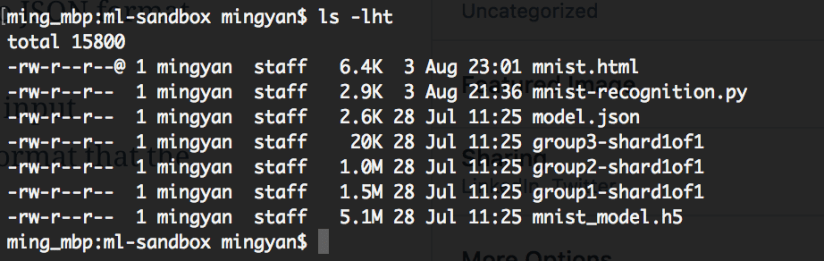
mnist_model.h5 is the native model saved in HDF5 format. model.json is the model converted from HDF5 format into JSON. Also note that these weight shards files groupX-shard1of1. These files are reiererenced in model.json so to use model.json these supporting files need to be available as well, otherwise it won’t work.
A simple HTML page with tensorflowjs loaded
The model has been converted into JSON format so it is ready for tensorflowjs to use. I created a simple HTML with a simple canvas to allow the handwritten number input just to mimic the MNIST data input so I can use model in tensorflowjs to make predictions. The simple HTML page looks like this,
  <!-- Load TensorFlow.js -->


Draw a number in this box
<div id="canvas-container"></div>
<div id="prediction"></div>
<div id="controls">
      Clear
      Tell me the number</div>
Importing tensorflowjs is pretty easy just like importing jQuery library:). It is ready for us to use. Here are a few lines of code to create the canvas to allow the user to draw a number with the mouse key and some buttons to reset and trigger the model to predict the number based on the input number.
(function () {
    // Creates a new canvas element and appends it as a child
    // to the parent element, and returns the reference to
    // the newly created canvas element
    var model;
    async function loadModel() {
        model = await tf.loadModel('https://s3-ap-southeast-2.amazonaws.com/mystaticdemo/model.json');
    }

    function createCanvas(parent, width, height) {
        var canvas = {};
        canvas.node = document.createElement('canvas');
        canvas.node.setAttribute('id', 'canvas');
        canvas.context = canvas.node.getContext('2d');
        canvas.node.width = width || 100;
        canvas.node.height = height || 100;
        parent.appendChild(canvas.node);
        return canvas;
    }

    async function init(container, width, height, fillColor) {
    var canvas = createCanvas(container, width, height);
    var ctx = canvas.context;
    //define a custom fillCircle method
    ctx.fillCircle = function (x, y, radius, fillColor) {
        this.fillStyle = fillColor;
        this.beginPath();
        this.moveTo(x, y);
        this.arc(x, y, radius, 0, Math.PI * 2, false);
        this.fill();
    };
    ctx.clearTo = function (fillColor) {
        ctx.fillStyle = fillColor;
        ctx.fillRect(0, 0, width, height);
    };
    ctx.clearTo(fillColor || "#ffffff");

    // bind mouse events
    canvas.node.onmousemove = function (e) {
        if (!canvas.isDrawing) {
        return;
        }
        var x = e.pageX - this.offsetLeft;
        var y = e.pageY - this.offsetTop;
        var radius = 3; // or whatever
        var fillColor = '#000000';
        ctx.fillCircle(x, y, radius, fillColor);
    };
    canvas.node.onmousedown = function (e) {
        canvas.isDrawing = true;
    };
    canvas.node.onmouseup = function (e) {
        canvas.isDrawing = false;
    };
    loadModel();
    }

    function predict(tfImage) {
        var output = model.predict(tfImage);
        var result = Array.from(output.dataSync());
        console.log('Output is : ', Array.from(output.dataSync()));
        var maxPossibility = result.reduce(function(a,b){return Math.max(a,b)});
        console.log(maxPossibility);
        document.getElementById('prediction').innerHTML =  '<p>'
            + result.indexOf(maxPossibility) + '</p>';
    }
    function clear() {
        console.log('clear canvas');
        var canvas = document.getElementById('canvas');
        var ctx = canvas.getContext('2d');
        ctx.clearTo('#ffffff');
        document.getElementById('prediction').innerHTML = '';
    }
    function recogniseNumber() {
        var canvas = document.getElementById('canvas');
        var ctx = canvas.getContext('2d');

        // console.log(ctx.getImageData(0,0, 100, 100));
        var imageData = ctx.getImageData(0, 0, 100, 100);
        var tfImage = tf.fromPixels(imageData, 1);

        //Resize to 28X28
        var tfResizedImage = tf.image.resizeBilinear(tfImage, [28,28]);
        //Since white is 255 black is 0 so need to revert the values
        //so that white is 0 and black is 255
        tfResizedImage = tf.cast(tfResizedImage, 'float32');
        tfResizedImage = tf.abs(tfResizedImage.sub(tf.scalar(255)))
            .div(tf.scalar(255)).flatten();
        tfResizedImage = tfResizedImage.reshape([1, 784]);

        //Make another dimention as the model expects
        console.log(tfResizedImage.dataSync());
        predict(tfResizedImage);
    }

    var container = document.getElementById('canvas-container');
    init(container, 100, 100, '#ffffff');
    document.getElementById('clear').addEventListener('click', clear);
    document.getElementById('predict').addEventListener('click', recogniseNumber);

})();
I uploaded the model.json file with all the groupX-shard1of1 files (weight shards) to a S3 bucket with public access and CORS enabled so it can just load the model from a URL. Importing the model is just a line of code tf.loadModel().
Transform the image data from native HTML canvas into a MNIST format that the model recognises
It turned out that the tricky part was not using the model to make prediction. It was the process to convert the image data from the canvas into the data array that the model can work with. So the ImageData object from ctx.getImageData() is a Unit8ClampedArray According to the MDN web docs, “The Uint8ClampedArray typed array represents an array of 8-bit unsigned integers clamped to 0-255;” But the model I trained only works with MNIST image format which is 28×28 pixel greyscale image data. The input data is a 2 dimensional array [1,784] because the input layer has 784 units mapped to the pixel values. I had a bit of look around on the internet on how to do this. Initially I was thinking of converting the canvas image from the original 100×100 pixel to 28×28 pixel, then I can convert the RGBA channels into a single greyscale image data. It took me some time but it turned out tensorflowjs has this awesome function tf.image.resizeBilinear() which makes the conversion such a easy job. With that, I do not have to manipulate the image data on the pixel level.
//Resize to 28X28
var tfResizedImage = tf.image.resizeBilinear(tfImage, [28,28]);
//Since white is 255 black is 0 so need to revert the values
//so that white is 0 and black is 255 in greyscale and
//convert into 0 to 1 by division
tfResizedImage = tf.cast(tfResizedImage, 'float32');
tfResizedImage = tf.abs(tfResizedImage.sub(tf.scalar(255)))
    .div(tf.scalar(255)).flatten();
tfResizedImage = tfResizedImage.reshape([1, 784]);
With the above few lines of code, I managed to convert and format the image data into a standard MNIST format. So it is ready for model to process.
Predict the number
This is the most simple part of the process. It is just model.predict(tfImage). Note the data loading from the tensor is a async process which returns a promise. There is a function dataSync() to make it a synchronous process.
So there we go. Here is the complete code on Github. Here is the working HTML on S3.
Thoughts
I modified the code for canvas rendering from jsfiddle.net so the credit goes to the original author. Although I saw 98.49% test accuracy with the test set data when I trained the model, it turns out that from time to time, it still can not recognise some numbers I wrote. So there is definitely a big room for improvement to the model. Also note that the model loading is a async process thus it was wrapped in a async function. So if you open the page and quickly write the number and click the button, it might throw an error complaining about the model not loaded. So that needs to be refactored.

 Ming's Notebook